Settings
Settings
Make SplitRowr yours by tweaking the global preferences.
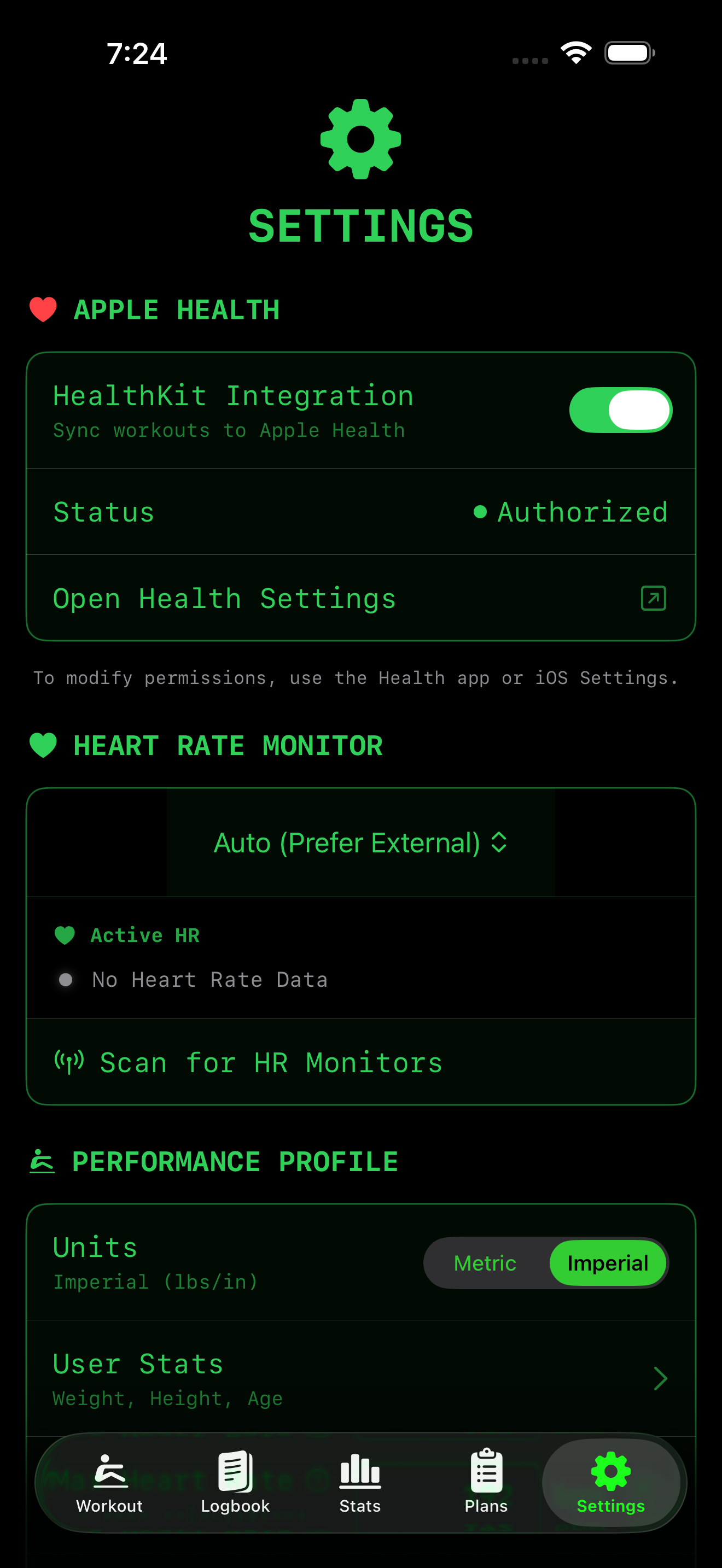
Units
Choose your preferred measurement system:
- Distance: Meters, Kilometers, Miles.
- Weight: Kilograms (kg), Pounds (lbs).
- Energy: Calories, Joules (kCals).
Appearance
- Theme: Choose between “Light”, “Dark”, or “System” (follows your phone setting).
- Retro Mode: Enable a high-contrast, pixelated look reminiscent of old LCD monitors.
Demo Mode
For testing or demonstration purposes without a physical rowing machine:
- Enable Demo Mode: Simulates a rowing machine connection, generating fake workout data.
- Mobility Testing: Fully supports the new mobility system, allowing you to preview warmup and cooldown routines.
- HRM Connection Testing: Simulate Heart Rate Monitor connections to test the interface and feedback.
Note: Workouts recorded in Demo Mode are clearly marked and should be discarded to avoid skewing your actual stats.
Data Management
- Resync HealthKit: Force a sync with Apple Health if numbers look off.
- Clear Cache: Free up space without deleting workout history.
- Export All: Download a JSON dump of your entire database.
Strava Integration
Connect your Strava account to share your progress.
- Connect: Link your Strava account securely.
- Auto-Export (Pro): Automatically upload every completed workout to your Strava feed.
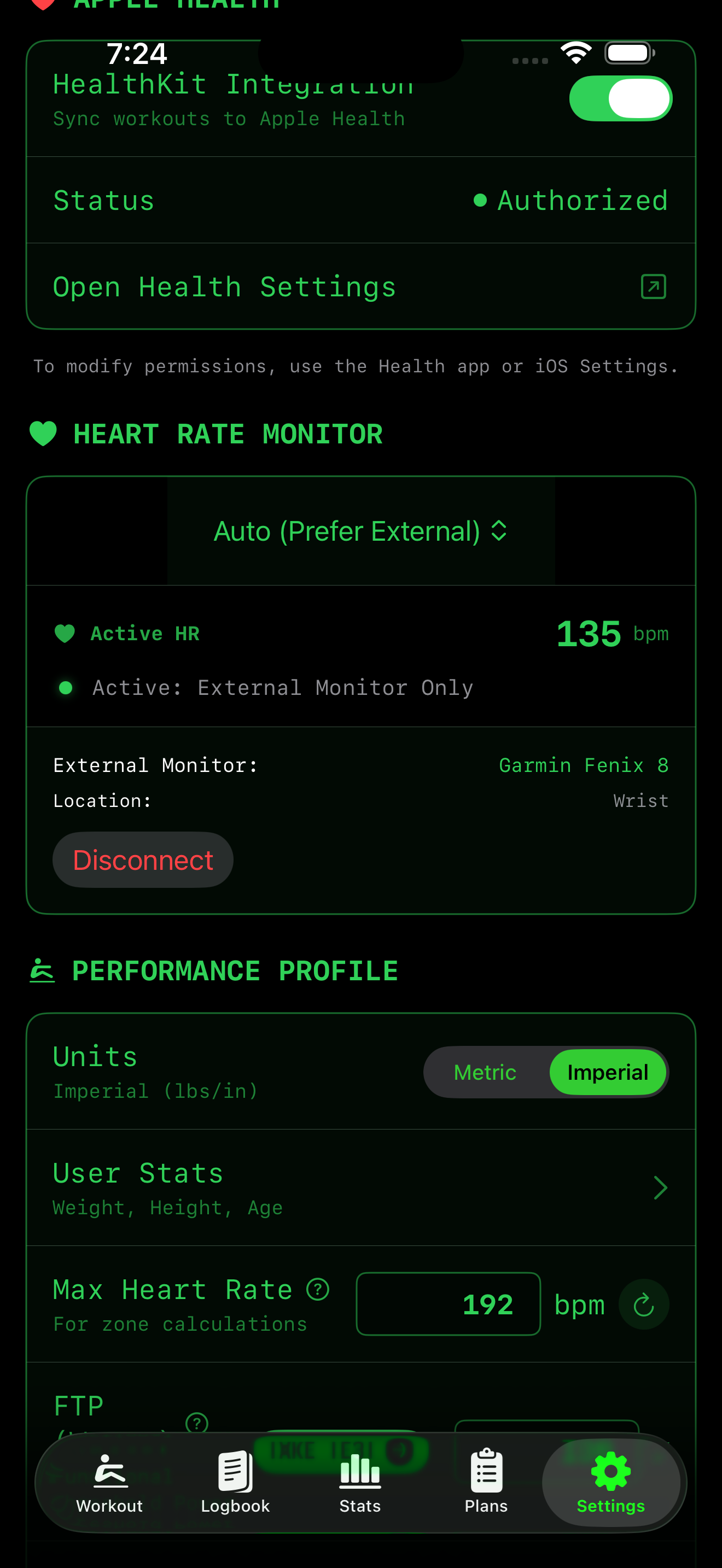
Heart Rate Monitor
Configure how SplitRowr collects and prioritizes your heart rate data.
Heart Rate Source
Choose your preferred data source:
- Auto (Prefer External): The recommended setting. Uses a direct Bluetooth monitor if connected; otherwise, falls back to the rower’s relay data.
- External Monitor Only: Forces the app to only use data from your direct Bluetooth monitor.
- Rowing Machine Only: Ignores external monitors and only uses data relayed by your rower.
Device Management
- Scan for HR Monitors: Starts looking for nearby Bluetooth heart rate monitors.
- Available Devices: Lists discovered monitors. Tap one to connect.
- Sensor Location: Displays the body location reported by your monitor (e.g., Chest, Wrist, Ear Lobe).
Contact Support
Need help? Use the Send Feedback button to email our support team directly. We love hearing from our users!