Connectivity
Connectivity Guide
SplitRowr relies on a stable Bluetooth connection to provide real-time metrics. Here is everything you need to know about connecting your hardware.
Supported Protocols
SplitRowr uses the FTMS (Fitness Machine Service) Bluetooth protocol. This is the industry standard for modern fitness equipment.
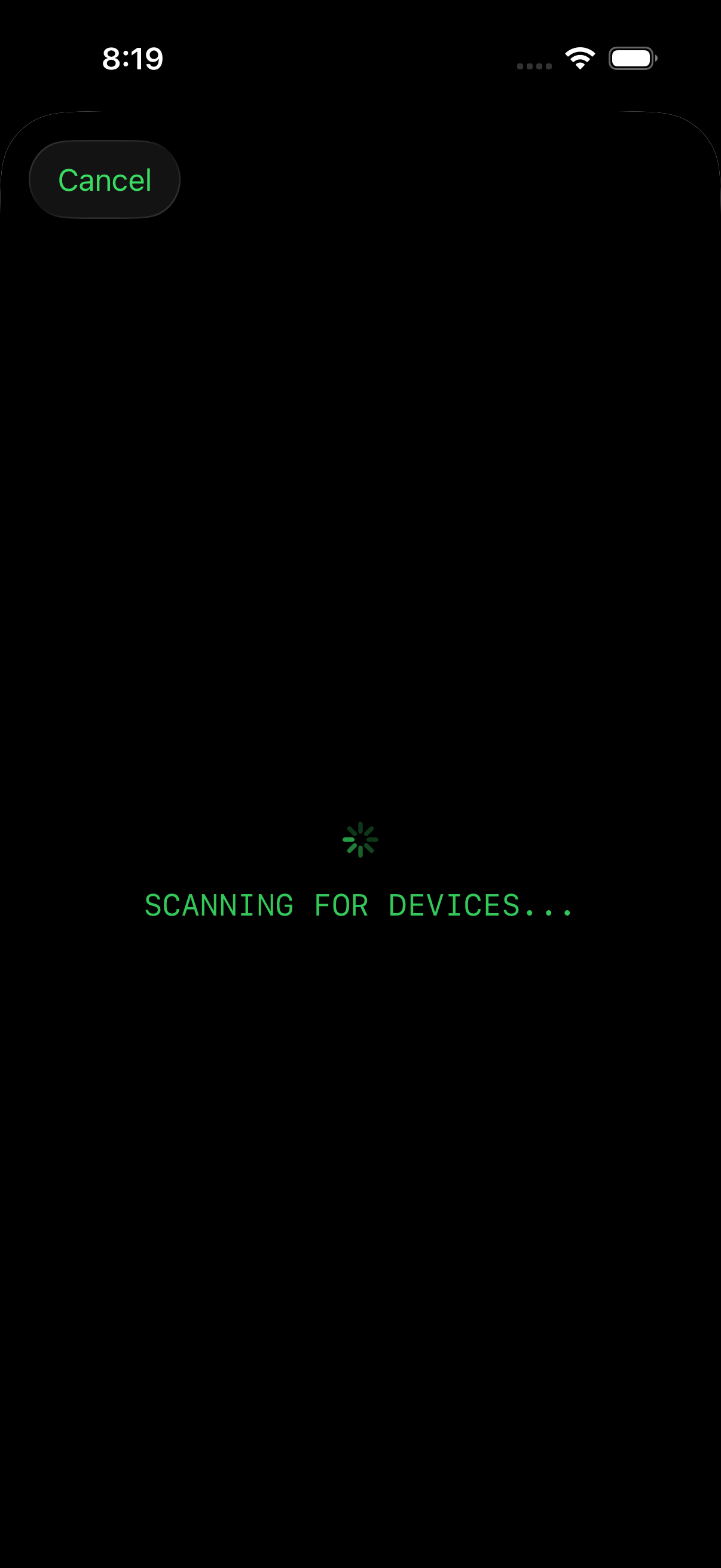
Concept2 PM5
- Ensure your PM5 firmware is up to date. Use the Concept2 Utility to update.
- On the PM5 menu, go to Connect > More Options > Turn Wireless On.
- Important: Do not pair the PM5 in your iPhone’s main Bluetooth settings. Only connect through the SplitRowr app.
WaterRower
- S4 Monitor: Requires the ComModule or an S4 Bluetooth Bridge.
- SmartRow: Currently, SmartRow uses a proprietary protocol and is not directly supported without a broadcast bridge.
Troubleshooting
Having trouble connecting? Try these steps:
- Toggle Bluetooth: Turn your iPhone’s Bluetooth off and on again.
- Restart App: Force quit SplitRowr and relaunch it.
- Check Permissions: Go to iOS Settings > SplitRowr and ensure “Bluetooth” permission is granted.
- Disconnect Others: Ensure no other apps (like ErgData or Zwift) are currently connected to the rower. The PM5 typically only supports one Bluetooth connection at a time.
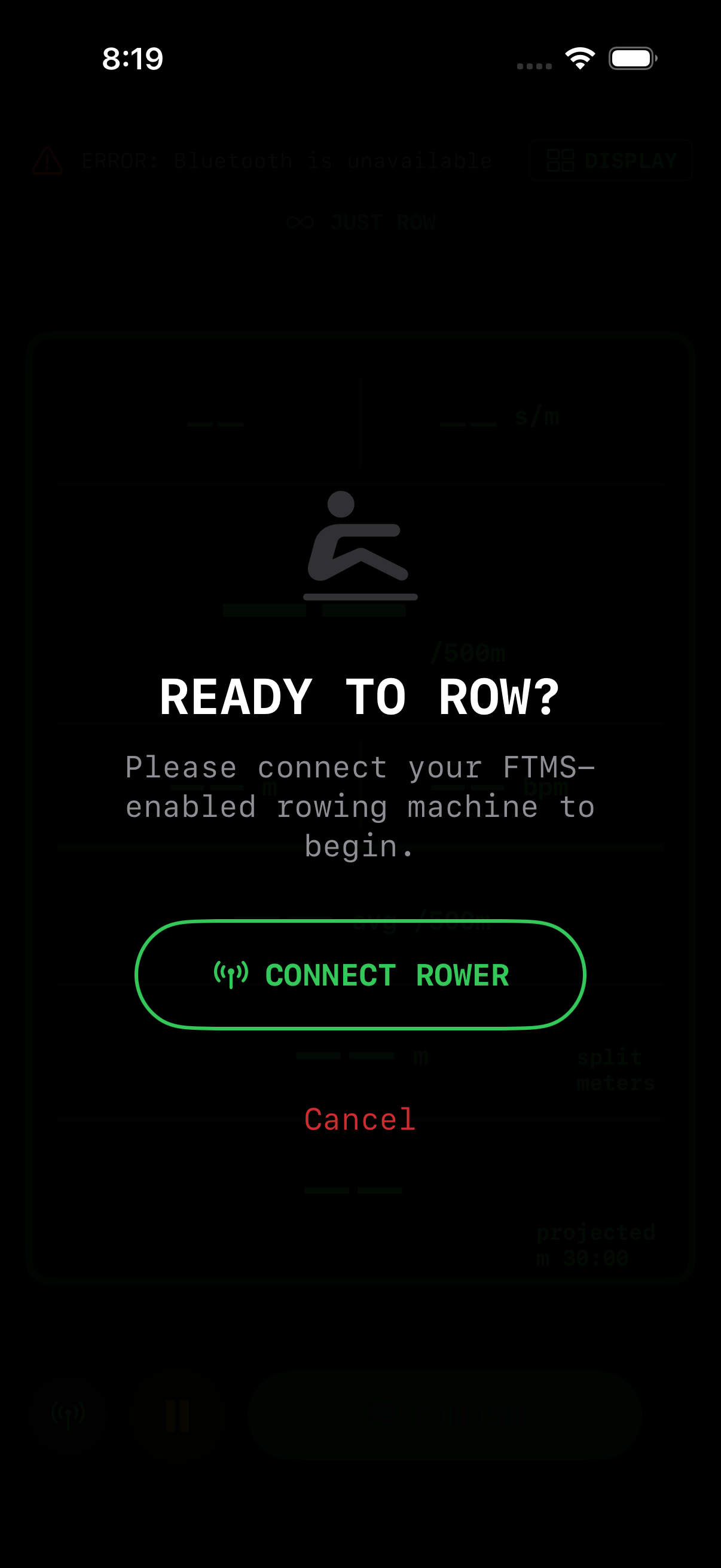
Heart Rate Monitors
SplitRowr supports two ways to track your pulse:
- Rowing Machine Relay: Most modern rowers (like the Concept2 PM5) allow you to pair your heart rate strap directly to the rower. The rower then “relays” this data to SplitRowr along with your rowing metrics.
- Direct Bluetooth Connection: Connect your heart rate monitor (chest strap, armband, or watch) directly to SplitRowr via the standard Bluetooth Heart Rate Service (HRS).
Connecting a Direct Monitor
To connect a Bluetooth monitor directly to the app:
- Navigate to Settings > Heart Rate Monitor.
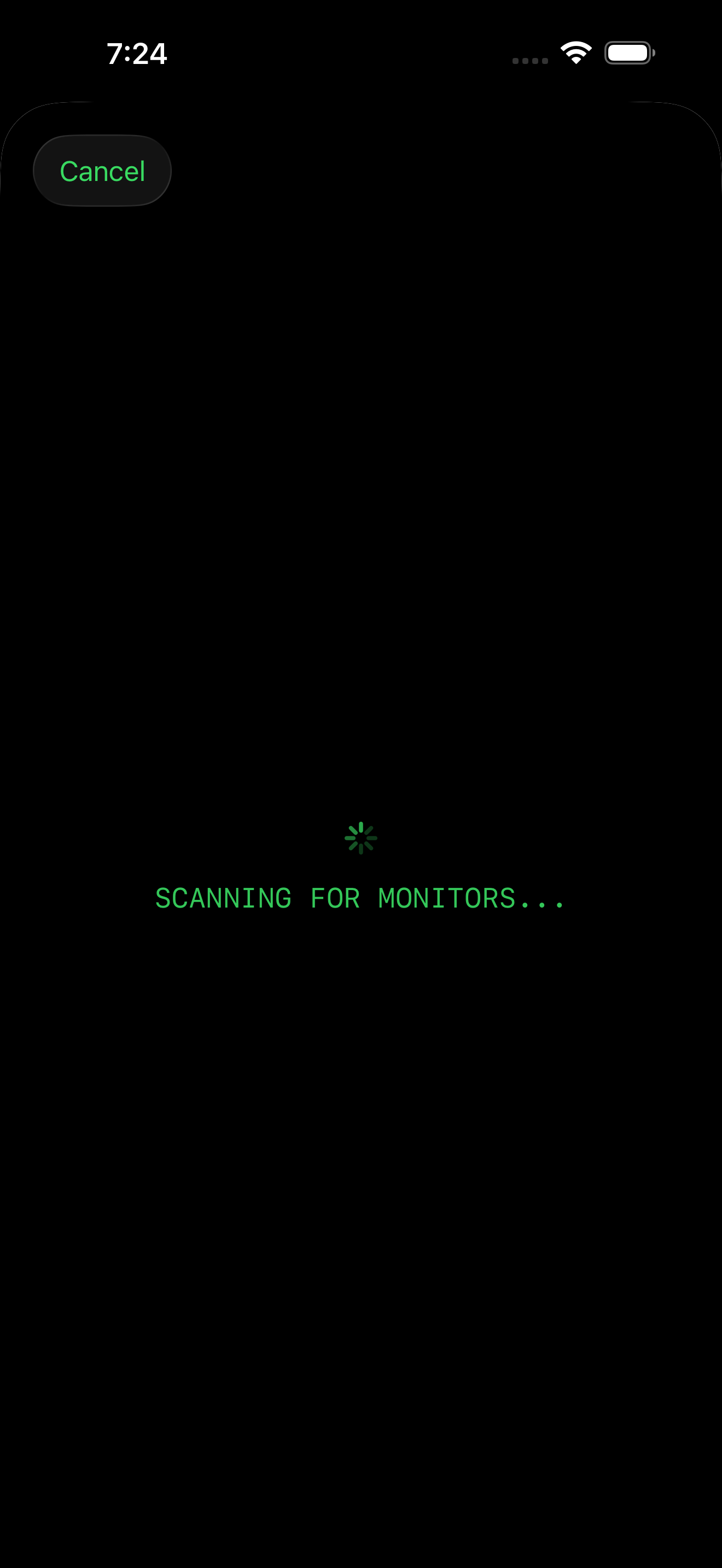
- Tap Scan for HR Monitors.
- Select your device from the list of available monitors.
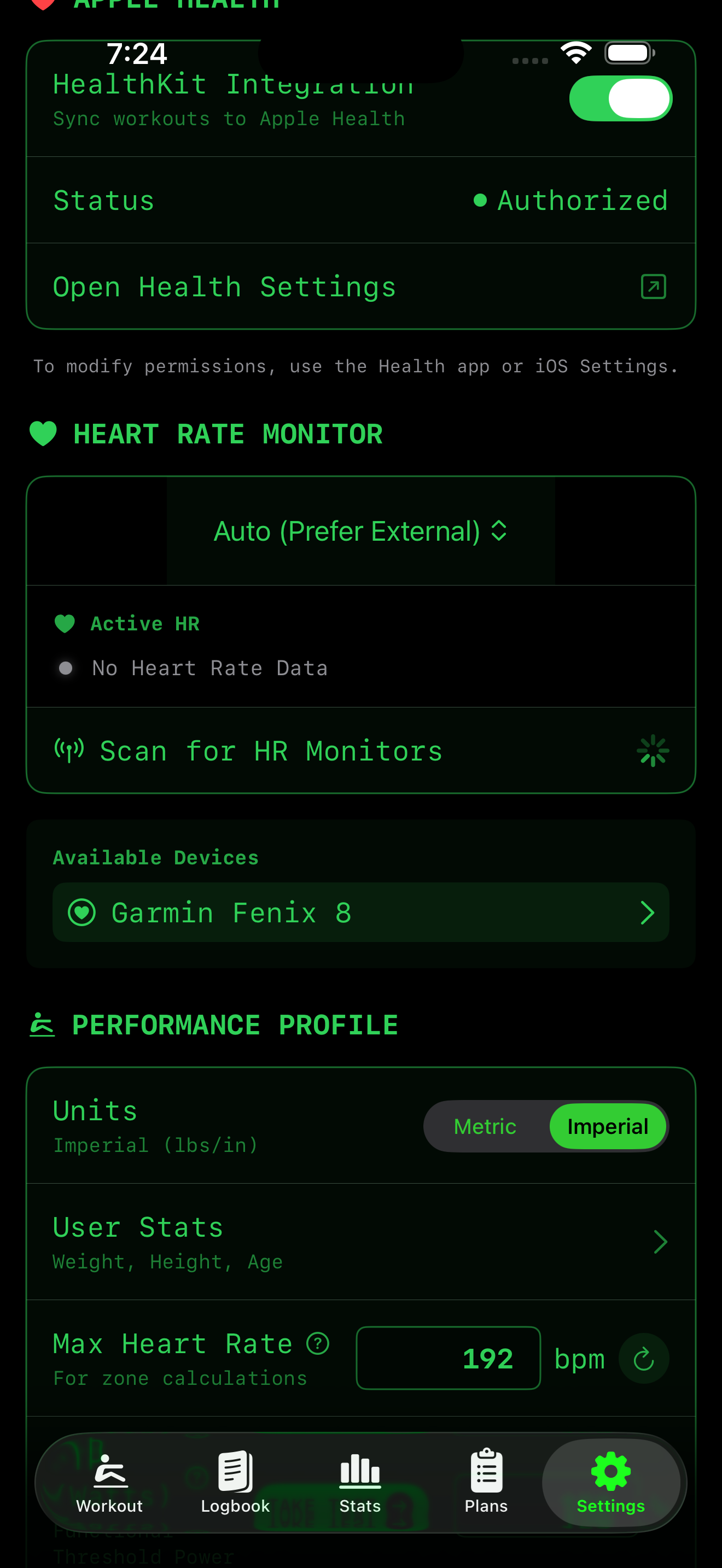
- Once connected, your live heart rate and sensor location (e.g., Chest, Wrist) will be displayed.
Connection Feedback Improvements
SplitRowr now provides enhanced feedback during the HRM connection process:
- Real-time Status Updates: Clear indicators show scanning progress, connection attempts, and success/failure states.
- Detailed Error Messages: Specific error descriptions help troubleshoot connection issues (e.g., “Device out of range” vs. “Pairing rejected”).
- Visual Connection Indicators: Animated icons and progress bars provide immediate visual feedback.
- Automatic Reconnection: When a previously connected HRM comes back into range, SplitRowr automatically attempts to reconnect with status notifications.
Garmin Watch Instructions
If you are using a Garmin watch to track your heart rate, you must enable Broadcast Heart Rate to make it visible to SplitRowr.
- Standard Broadcast: On most Garmin watches, hold the Up/Menu button, go to Sensors & Accessories > Wrist Heart Rate > Broadcast Heart Rate, and select Start.
- Broadcast During Activity: You can also set your watch to automatically broadcast HR whenever you start an activity (like “Indoor Rowing”) on the watch. Go to Sensors & Accessories > Wrist Heart Rate > Broadcast During Activity > On.
Once broadcasting is active, the watch will appear in the SplitRowr scanning list as a “Heart Rate Monitor” or by its model name (e.g., “Forerunner 255”).
Auto-Prioritization
By default, SplitRowr is set to Auto mode. In this mode, the app will always prioritize data from a direct Bluetooth monitor (like a chest strap) over the rower’s relay data. Chest straps are generally more accurate and responsive than rower relays or wrist-based sensors.
If you disconnect your direct monitor, SplitRowr will automatically fall back to the rower’s heart rate data if available.
Tip: For the most accurate calorie calculations, we recommend using a high-quality Bluetooth chest strap connected directly to SplitRowr.